Contents Jump to section
Multi Admin Approval in Intune: Because One Admin Shouldn't Rule Them All

Multi Admin Approval in Intune: Because One Admin Shouldn't Rule Them All
Multi Admin Approval (MAA) in Intune requires a second administrator to approve changes before they take effect. In this post you will learn what it protects, how to configure access policies, and why every Intune tenant should have this enabled yesterday.
Here's a fun thought experiment: imagine a disgruntled admin — or worse, an attacker who compromised an admin's account — decides to wipe every managed device in your organization. Or quietly removes your compliance policies. Or reassigns RBAC roles to give themselves full control while locking everyone else out.
Without Multi Admin Approval? That change goes live instantly. No second pair of eyes. No "are you sure?" from a colleague. Just raw, unfiltered administrative power and whatever chaos it brings.
I know what you're thinking: "that would never happen to us." And sure, maybe it won't. But the whole point of security is planning for the scenarios you hope never happen. That's where Multi Admin Approval comes in — and honestly, it's one of those features that should have existed from day one.
What Multi Admin Approval actually does
The concept is straightforward: you create access policies that protect specific Intune resource types. When any admin makes a change to a protected resource, Intune doesn't apply it immediately. Instead, it creates a request that a different admin must explicitly approve before the change takes effect.
Think of it as a pull request for your Intune configurations. You wouldn't merge your own PR in a production codebase (I hope), so why would you let a single account push changes to thousands of managed devices unchecked?
The key word there is different. Even if the requesting admin is also a member of the approver group, they cannot approve their own requests. Intune enforces this — no rubber-stamping your own changes.
What can you protect?
As of March 2026, MAA access policies support the following resource types:
| Protected Resource | What It Covers |
|---|---|
| Apps | App deployments (not app protection policies) |
| Compliance policies | Creating and managing device compliance policies |
| Configuration policies | Policies via the Settings Catalog |
| Device actions | Wipe, Retire, and Delete actions |
| Role-based access control | Changes to roles, permissions, admin groups, member group assignments |
| Scripts | PowerShell scripts deployed to Windows devices |
| Access Policies | Creating or managing MAA policies themselves (meta, I know) |
| Tenant Configuration | Device categories — creating, editing, or deleting them |
That last one — protecting Access Policies — is particularly clever. It means an attacker can't just disable MAA as their first move. They'd need a second admin to approve disabling the thing that requires a second admin. It's turtles all the way down.
Q: What about app protection policies? Conditional Access? Endpoint Security profiles?
A: Not yet. MAA currently covers the resource types listed above. Notably, Endpoint Security policies (like your firewall rules, antivirus configurations, and attack surface reduction rules) are not in scope. Neither are Conditional Access policies — those live in Entra ID, not Intune. Hopefully Microsoft expands the scope over time, but for now, protect what you can.
Prerequisites: What you need before you start
Before you dive into creating access policies, let's get the boring-but-important bits out of the way.
You need at least two admin accounts. Now, I know plenty of organizations — especially smaller ones — where a single person handles all of IT. That's reality, and there's nothing wrong with it. But even if you're a one-person IT team, you should have a separate, dedicated admin account for Intune administration that is distinct from your day-to-day work account. This admin account should be protected with phishing-resistant credentials only — FIDO2 security keys or Windows Hello for Business, no SMS, no phone call, no traditional MFA that can be intercepted. If an attacker phishes your daily driver account, your admin account stays safe. And if your admin account gets compromised somehow, you still have your second account to act as the approver. Two accounts, one person — that's the minimum viable setup for MAA to work, and frankly it's good security hygiene regardless.
To create and manage access policies, you need one of:
- A custom Intune role with the Multi Admin Approval permissions: Create access policy, Read access policy, Update access policy, and Delete access policy. This is the recommended approach — least privilege and all that.
- The Intune Administrator Entra role. This works, but it's a privileged role that gives full read/write to Intune, so it's overkill for just managing access policies.
To approve or reject requests, the account must:
- Be a member of the approver group assigned to the access policy
- Have the Approval for Multi Admin Approval permission in their Intune role
- The approver group must also be a member group of at least one Intune role assignment — if it isn't, Intune will periodically remove approver group members. This is the kind of gotcha that bites you three weeks after setup when approvers suddenly can't approve anything. Ask me how I know.
Important: The approver group requirement for role assignment membership is easy to miss. If your approvers are losing their ability to approve requests, check that their security group is added as a member group to an Intune role assignment. It doesn't matter which role — the group just needs to be associated with something.
Setting it up: Step by step
Step 1: Create your approver group
Before creating any access policy, set up a security group in Entra ID containing the admins who should have approval authority. A few recommendations:
- Use a dedicated security group — don't reuse an existing "all admins" group. You want to be deliberate about who can approve what.
- If you're a larger team, include at least two or three members. If your only approver is on vacation when someone needs an urgent change approved, you're going to have a bad time.
- If you're a one-person IT shop, add your dedicated admin account to the approver group. You'll submit changes from your work account and approve them by signing in with your admin account (or vice versa). It's an extra step, yes — but that extra step is exactly the point. It forces a deliberate sign-in with a separate, hardened account before any destructive change goes through.
- For larger organizations, consider having separate approver groups for different resource types. Your app deployment team might not be the right people to approve RBAC changes.
Step 2: Create an access policy
- Sign in to the Microsoft Intune admin center
- Navigate to Tenant administration > Multi Admin Approval > Access policies
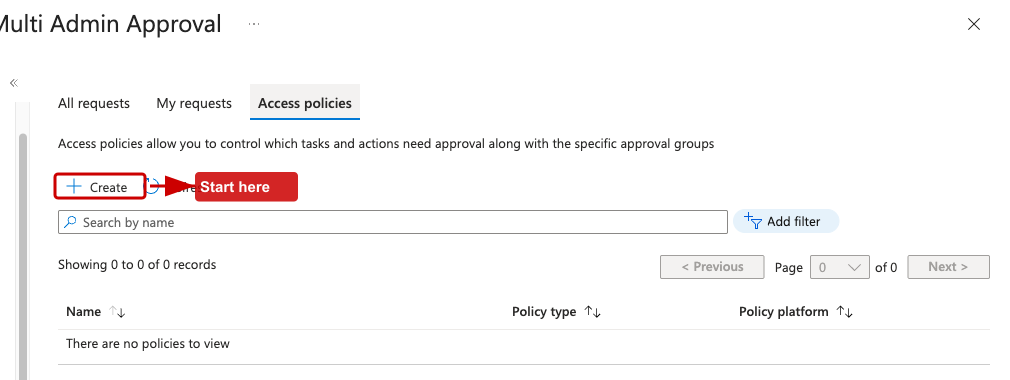
- Click Create
- On the Basics page:
- Give it a descriptive Name (e.g., "Require approval for device actions")
- Add an optional Description
- Select the Profile type — each policy protects a single resource type
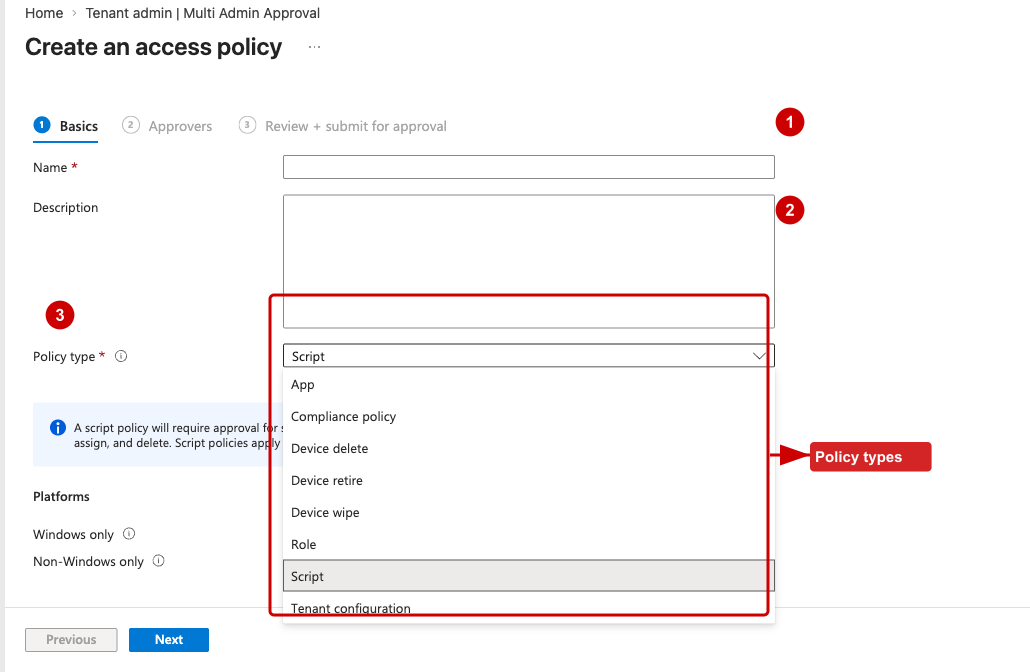
- On the Approvers page:
- Click Add groups and select your approver security group
- Note: you can't do complex group configurations here — no exclusions, just a straightforward group selection
- On the Review + Create page, review and save
Step 3: Approve the access policy itself
Here's the part that trips people up: the access policy you just created is itself subject to approval. You need a second admin account to approve it.
- Sign in with a different admin account (one that's in the approver group with the Approval for Multi Admin Approval permission)
- Go to Tenant administration > Multi Admin Approval > Received requests
- Find the request for your new access policy
- Click the Business justification link to review the details
- Add any Approver notes and click Approve request
- Sign back in with the original account, find the request under My requests, and click Complete
Yes, the creating admin needs to come back and finalize it. The workflow is: Create > Approve (different admin) > Complete (original admin). It's a three-step dance, but it ensures both parties are in the loop.
Step 4: Repeat for each resource type
Each access policy covers one resource type. If you want to protect apps, compliance policies, device actions, and RBAC, you need four separate access policies. Tedious? A little. But it gives you granular control over who approves what.
My recommended starting point — protect these resource types first:
- Device actions (Wipe, Retire, Delete) — the most destructive operations
- Role-based access control — prevents privilege escalation
- Access Policies — protects MAA itself from being disabled
- Scripts — PowerShell scripts can do anything on a device
- Compliance policies — removing compliance can silently break Conditional Access enforcement
The day-to-day workflow
Once MAA is active, here's what life looks like for your admins:
Submitting a change
Nothing changes about how you create or edit resources. You use the same Intune admin center workflows as always. The difference is at the end: instead of the change going live immediately, you'll see a Business justification field on the final review page. Fill it in (be descriptive — your approver will read this), and submit.
The change sits in a pending state until approved.
Pro tip: Intune does not send notifications when a new request is created. If your change is urgent, reach out to your approvers directly. Slack them. Teams them. Walk to their desk. Carrier pigeon. Whatever works. Don't just submit and wait, hoping someone checks the approval queue today.
Approving a change
Approvers check the Received requests page under Tenant administration > Multi Admin Approval. For each request, they can see who submitted it, what type of change it is, and the business justification. They review the details, add approver notes, and either Approve or Reject.
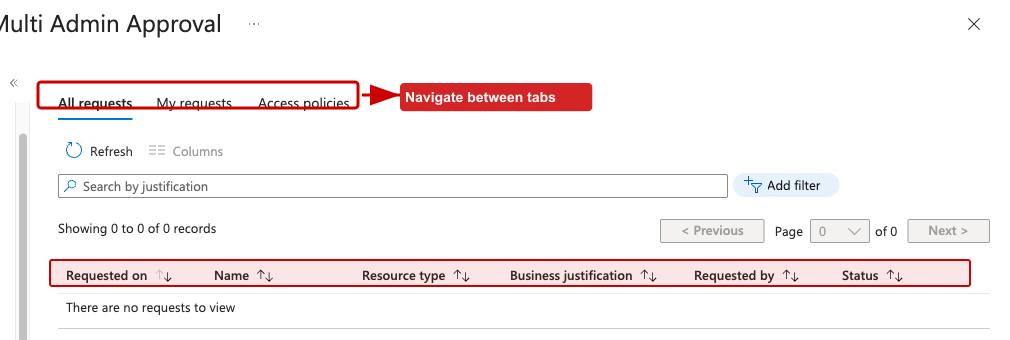
If rejected, the approver notes are visible to the requestor — so provide a reason. "No" is not helpful feedback. "No, because this compliance policy removes the encryption requirement and that violates our baseline" is.
Completing a change
After approval, the original requestor needs to come back and click Complete to actually apply the change. This final step is intentional — it ensures the requestor reviews the approval and consciously triggers the deployment.
Request lifecycle
| Status | Meaning |
|---|---|
| Needs approval | Waiting for an approver to act |
| Approved | Approved, waiting for requestor to complete |
| Completed | Change has been applied |
| Rejected | Approver rejected the request |
| Canceled | Requestor canceled their own request |
| Expired | No action taken within 30 days |
Requests expire after 30 days of inactivity. If a request expires, it must be resubmitted from scratch. Also, only one pending request per object is allowed — if someone already has a pending change for that compliance policy, you can't submit another one until the first is resolved.
Things to consider (the practical part)
No notifications — seriously
I mentioned this above, but it bears repeating because it's the single biggest operational pain point. Intune does not send email notifications, Teams messages, or push alerts when approval requests are created or when their status changes. Your approvers need to proactively check the admin center.
For organizations that take this seriously, consider building a lightweight automation — a Logic App or Power Automate flow that polls the Intune Graph API for pending approval requests and posts to a Teams channel. It's not built-in, but it's not hard either.
Audit logging
Every MAA action — request creation, approval, rejection, completion — is logged in the Intune audit logs. This is your paper trail. If you ever need to answer "who approved the deletion of our compliance baseline on March 15th?", the audit log has it. Navigate to Tenant administration > Audit logs and filter on Multi Admin Approval activities.
Emergency break-glass
Think about your break-glass scenario. If your tenant is under active attack and you need to make an emergency change to a protected resource, can you get approval fast enough? Make sure your approver group has members across time zones, and that your break-glass admin accounts have the necessary permissions. Document the emergency procedure before you need it.
Start with monitoring, then enforce
If you're nervous about disrupting your admin team's workflow, start by protecting the most critical resource types (device actions and RBAC) and leave the rest unprotected. Get your team used to the approval workflow on high-impact changes before expanding to apps, scripts, and configuration policies. Gradual rollout beats big-bang deployment every time.
The elephant in the room: Can't an attacker just bypass MAA?
This is the question I hear most often when discussing Multi Admin Approval, and it's a fair one. The attack goes like this:
- Attacker compromises a Global Admin account
- Attacker creates a new user account (or takes over an existing one)
- Attacker assigns admin privileges to the new account
- Attacker adds the new account to the MAA approver security group
- Attacker now has two accounts — one to submit changes, one to approve them
- MAA is effectively a rubber stamp
If you're nodding along thinking "yeah, that's what I was worried about" — good. You should be. MAA on its own does not protect against a fully compromised Global Admin. If someone has unrestricted GA access, they can manipulate the approver group and approve their own destructive changes with a puppet account.
But there's a way to make this significantly harder: Restricted Administrative Units.
Restricted Administrative Units to the rescue (mostly)
Restricted Administrative Units (RAUs) are an Entra ID feature that lets you protect specific objects — users, security groups, and devices — from modification by anyone except administrators explicitly assigned a role scoped to that specific RAU. The critical part: this restriction applies to everyone, including Global Admins and Privileged Role Admins. A tenant-scoped Global Admin cannot modify the membership of a group inside a Restricted Administrative Unit.
Here's how this helps MAA:
- Create a Restricted Administrative Unit (the restricted management flag must be set at creation — it can't be changed later)
- Add your MAA approver security group to the RAU
- Assign a trusted admin a Groups Administrator role scoped to the RAU — only this admin can modify group membership
- Your compromised Global Admin? Blocked. They cannot add their puppet account to the approver group.
This is a significant improvement. Without RAUs, manipulating the approver group is trivial for any GA. With RAUs, a compromised GA who tries to modify the approver group gets a polite error message saying management rights are limited to administrators scoped to the restricted administrative unit.
The honest caveat
RAUs raise the bar, but they don't make the attack impossible. Here's what a Global Admin can still do with RAUs:
- Remove the approver group from the RAU, then modify its membership
- Delete the RAU entirely, which lifts the protection
- Create new role assignments at the RAU scope, giving themselves access
These are all auditable events in the Entra audit logs, and they require the attacker to know about the RAU protection and deliberately circumvent it. That's a much more sophisticated attack than just adding a user to a group. But it's still possible.
So what's the real defense? Layers. RAUs are one layer. But before we get to the full picture, there's another elephant we need to address.
The other elephant: Automation bypasses MAA entirely
Here's the part that doesn't get talked about enough. Multi Admin Approval only applies to changes made through the Intune admin center — the interactive portal. If you use the Microsoft Graph API with application permissions (the client credentials flow, where an app authenticates as itself without any user context), MAA does not apply. At all.
This is not a bug. There was a brief period where application permissions were accidentally subject to MAA checks, but Microsoft fixed that — and by "fixed" I mean they made sure application permissions bypass MAA, because that's the intended design. App-to-app automation isn't supposed to go through a human approval workflow.
Note (April 2026): The fix that restored the intended behavior — making application permissions bypass MAA — rolled out gradually over roughly a week in late March / early April 2026. If you noticed application-permission calls temporarily hitting MAA checks during that window, that was the accidental behavior being corrected. By early April the rollout was complete across all tenants.
The problem is that a compromised Global Admin can exploit this:
- Create an app registration in Entra ID
- Grant it application permissions like
DeviceManagementManagedDevices.PrivilegedOperations.All(which allows device wipe, retire, and delete via the Graph API) - Grant tenant-wide admin consent for those permissions
- Create a client secret for the app
- Call the Graph API using the client credentials flow —
POST /deviceManagement/managedDevices/{id}/wipe - Every device in your tenant gets wiped. No approval request. No business justification. No second admin needed.
The same applies to compliance policies (DeviceManagementConfiguration.ReadWrite.All), apps (DeviceManagementApps.ReadWrite.All), and scripts (DeviceManagementScripts.ReadWrite.All). If there's a Graph API for it and an application permission that grants access, MAA is not in the picture.
Let that sink in. You can have MAA enabled on every supported resource type, with RAU-protected approver groups, with PIM on every privileged role — and an attacker who can register an app and grant it consent can still wipe your fleet with a single HTTP POST.
So what can you do?
You can't make the Graph API respect MAA (that's Microsoft's call). But you can make it much harder for an attacker to set up the automation in the first place:
Restrict app registration creation. By default, every user in Entra ID can register applications. Set Users can register applications to No in Entra ID > User settings. This limits app registration to users with the Application Administrator, Cloud Application Administrator, or Global Administrator role. That's a smaller blast radius.
Restrict admin consent grants. Application permissions require admin consent. Configure the admin consent workflow so that consent requests go through an approval process rather than being granted unilaterally. You should also review whether your admins truly need roles that can grant consent — Application Administrator and Cloud Application Administrator can both do this.
Use Conditional Access for workload identities. Entra ID supports Conditional Access policies for service principals. You can restrict which networks or IP ranges service principals can authenticate from. If a newly created app registration suddenly tries to authenticate from an IP address that isn't your automation infrastructure, block it.
Monitor everything. Set up alerts in your SIEM or Microsoft Sentinel for:
- New app registrations (especially ones requesting Intune/DeviceManagement permissions)
- Admin consent grants for application permissions
- New client secrets or certificates added to existing app registrations
- Graph API calls to sensitive Intune endpoints (device wipe, retire, delete)
A legitimate automation pipeline doesn't appear overnight. If a new service principal with DeviceManagementManagedDevices.PrivilegedOperations.All shows up at 2 AM and starts calling the wipe endpoint, that's your signal.
Lock down privileged roles with PIM. The roles that can create app registrations and grant consent — Global Administrator, Application Administrator, Cloud Application Administrator — should all require PIM activation with approval and justification. This doesn't prevent the attack if the role is already activated, but it narrows the window.
The uncomfortable truth: MAA is fundamentally a portal-level control. It protects against interactive admin mistakes and against attackers who operate through the UI. It does not protect against programmatic access. This doesn't make MAA useless — most real-world admin actions happen through the portal, and MAA catches those. But if your threat model includes a sophisticated attacker with GA access who knows about the Graph API, you need the additional layers described here. MAA is one piece of the puzzle, not the whole picture.
If I were to summarize it bluntly, I would say this: Multi Admin Approval is excellent for protecting against co-worker mistakes, rushed changes, and compromise of ordinary Intune admin accounts operating through normal interactive workflows. It is not, by itself, a strong control against a fully compromised Global Administrator. That doesn't make it a checkbox feature or a gimmick. It makes it a very useful layer that reduces a large class of real-world risk. But if your goal is to defend against a serious tenant compromise, MAA only becomes meaningful when combined with RAUs, phishing-resistant credentials, PIM, app consent governance, workload identity controls, and monitoring.
Defense in depth for MAA
| Layer | What It Does |
|---|---|
| Multi Admin Approval | Requires a second admin to approve interactive changes to protected Intune resources |
| Restricted Administrative Unit | Prevents unauthorized modification of the MAA approver group, even by Global Admins |
| Restrict app registrations and consent | Prevents attackers from creating automation that bypasses MAA via the Graph API |
| Conditional Access for workload identities | Restricts where service principals can authenticate from, blocking rogue automation |
| Minimal Global Admin accounts | Fewer GA accounts = smaller attack surface. Microsoft recommends no more than 2-4 permanent GAs, plus break-glass accounts |
| Phishing-resistant credentials on all admin accounts | FIDO2 security keys or Windows Hello for Business only — no SMS, no phone call, no authenticator push. If the credential can't be phished, the account is much harder to compromise |
| Privileged Identity Management (PIM) | Make GA a just-in-time role that requires activation with additional approval and justification, rather than a permanent assignment |
| Monitoring and alerting | Set up alerts for RAU membership changes, GA role assignments, MAA policy modifications, new app registrations, and admin consent grants |
No single control stops a determined attacker with full Global Admin access. But stacking these layers together means the attacker needs to compromise a phishing-resistant credential, bypass PIM activation approval, know about and circumvent the RAU protection, set up automation without triggering monitoring alerts, and do all of this before you notice. That's a very different threat model than "one compromised password and the kingdom falls."
Pro tip: If you're serious about this, also enable MAA protection on the Access Policies resource type itself and on RBAC. This means the attacker can't silently disable MAA or grant themselves new roles without triggering the approval workflow. Combined with a RAU-protected approver group, you've created a situation where every path to circumvention requires either multiple compromised accounts or auditable administrative unit manipulation. That's about as good as it gets.
Why this matters for Zero Trust
Multi Admin Approval is fundamentally a Zero Trust control. It assumes that any single admin account might be compromised and builds in a verification step before destructive or sensitive changes take effect. It's the same principle as requiring MFA for sign-ins — except applied to administrative actions rather than authentication.
If you're building a Zero Trust posture for your endpoint management (and you should be), MAA is one of those table-stakes features that's easy to enable and hard to regret. The only regret is not having it when something goes wrong.
Final words
Multi Admin Approval in Intune is one of those rare security features that's genuinely simple to set up and immediately valuable. No agents to deploy, no complex architecture, no licensing gotchas (it's included in your existing Intune license). Just access policies, approver groups, and a workflow that ensures no single admin can make tenant-wide changes unchecked.
Is it perfect? No. The lack of notifications is a real gap. The per-resource-type policy creation is a bit tedious. The list of protectable resources doesn't yet cover everything you'd want (Endpoint Security policies, I'm looking at you). And as we discussed, MAA is a portal-level control — it doesn't stop programmatic access via the Graph API, which means you need the surrounding layers of app registration restrictions, consent governance, workload identity Conditional Access, and monitoring to close the automation gap. But what MAA does cover — device wipes, compliance policies, RBAC, scripts — hits the highest-impact categories for interactive admin actions, which is where most real-world mistakes and attacks happen.
Set it up. Protect your device actions first. Protect your RBAC second. Then expand from there. Your future self — the one who's not dealing with an unauthorized mass device wipe at 2 AM — will thank you.