Contents Jump to section
Managing Microsoft Teams Firewall requirements with Intune

UPDATED March 2026 -- This post has been reviewed and updated to reflect current Microsoft product names, portal locations, and technology status. See inline notes for specific changes.
NOTE (Updated 2026): Microsoft has completed the transition from Classic Teams to New Teams (Teams 2.0) across all platforms. New Teams uses different executable paths and may have different firewall requirements than Classic Teams. The firewall rules and script in this post were written for Classic Teams. Verify the executable paths apply to your Teams version before deploying. The New Teams desktop client executable is typically located at
%LocalAppData%\Microsoft\Teams\current\Teams.exefor user installs or via the system-wide MSIX package path for machine-wide installs.
The Problem

With over 44 million active users, Microsoft Teams creates a familiar headache: the annoying "Windows Security Alert" from Windows Firewall every time users try to share their screen.
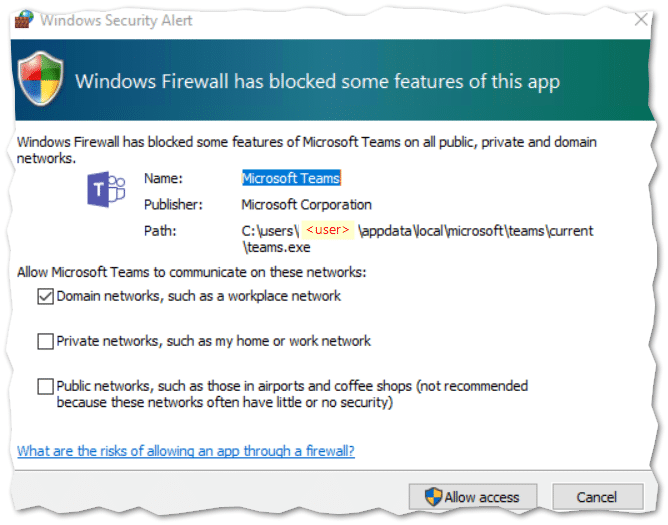
The Teams executable requires an inbound Firewall rule when it detects users on the same domain network. Teams tries to create the rules automatically but they require admin permissions. Dismissing the prompt actually creates two blocking Firewall rules for Teams.exe.
The complication: Teams.exe is usually installed per-user in the user's APPDATA folder (%localappdata%\Microsoft\Teams\current\Teams.exe), making it impossible to create a single rule via the built-in Firewall CSP.
The Script Solution
The official Microsoft script is simple but not intelligent. The improved script is specifically designed for Intune:
Fetch it from GitHub: Update-TeamsFWRules.ps1
Improvements over the Microsoft script:
- Designed for Intune PowerShell script deployment assigned to user groups
- Runs once per user and detects who is signed in
- Cleans up existing blocking rules created by dismissed firewall prompts
Configuring the PowerShell script in Intune
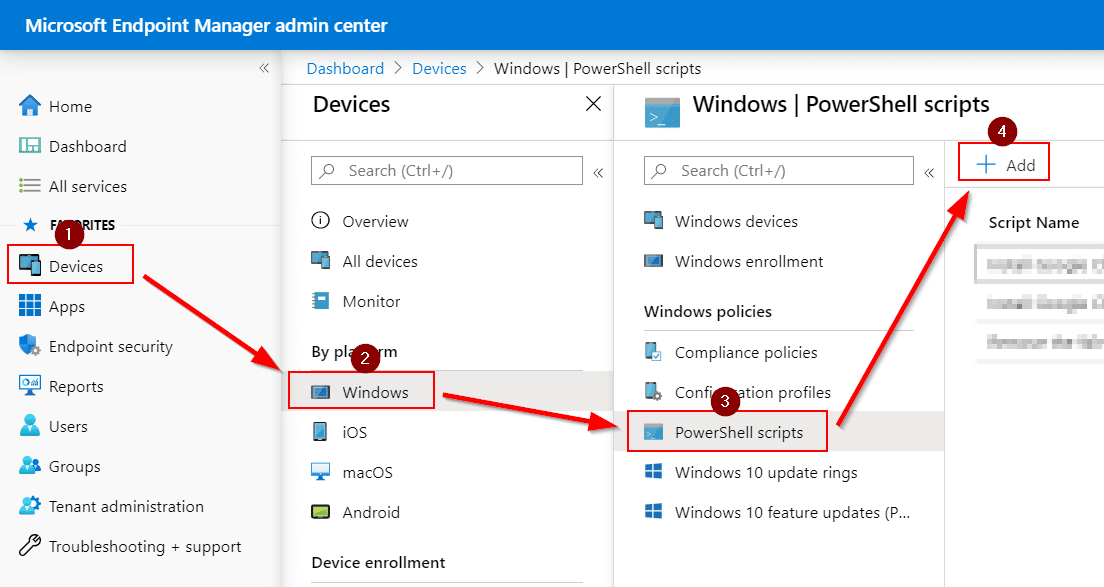
Navigate to the Microsoft Intune admin center at https://intune.microsoft.com:
- Go to Devices > Windows > PowerShell scripts
- Click Add
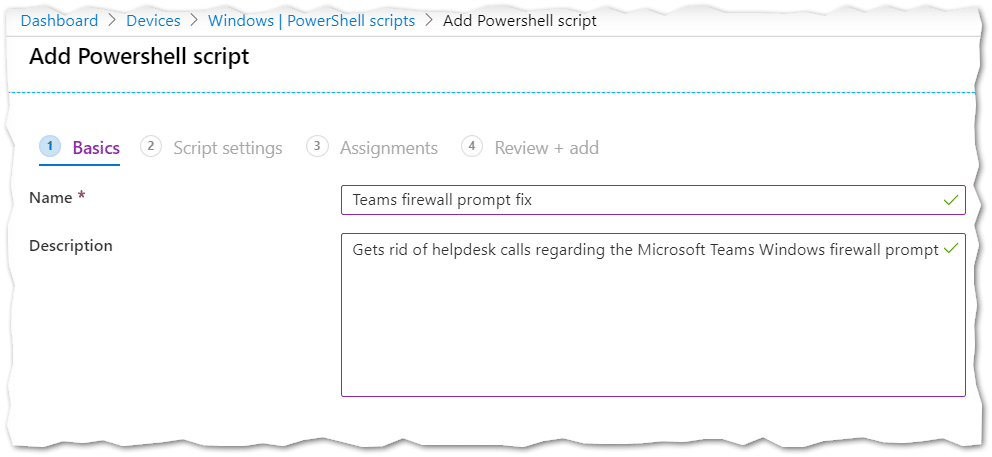
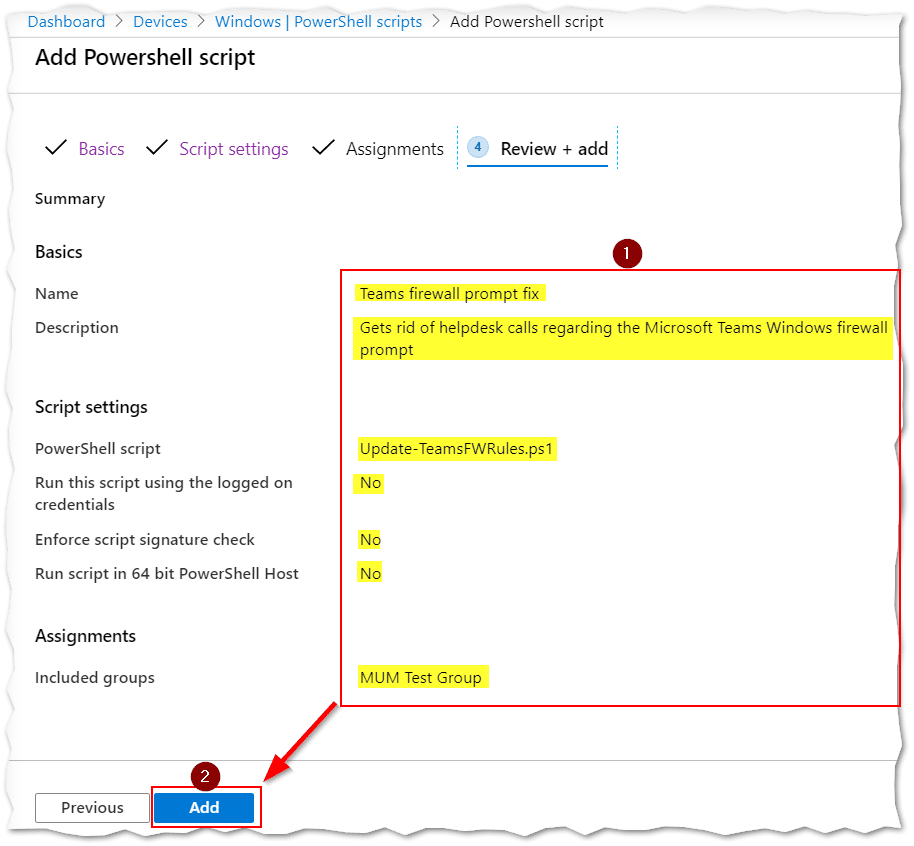
- Name it "Teams firewall prompt fix"
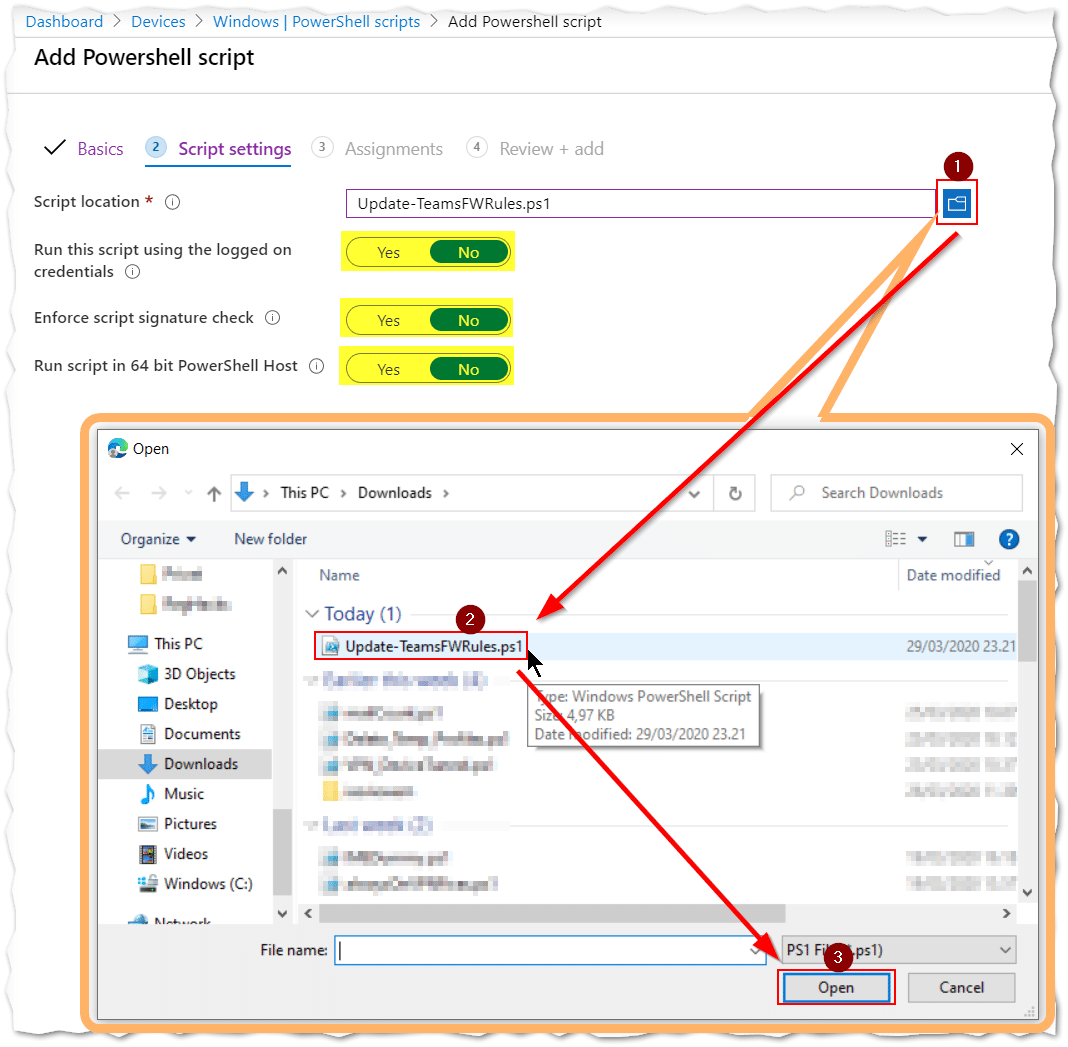
- Upload the script. Leave script settings as-is (runs in system context, NOT user context)
- Assign to a group of users (not devices)
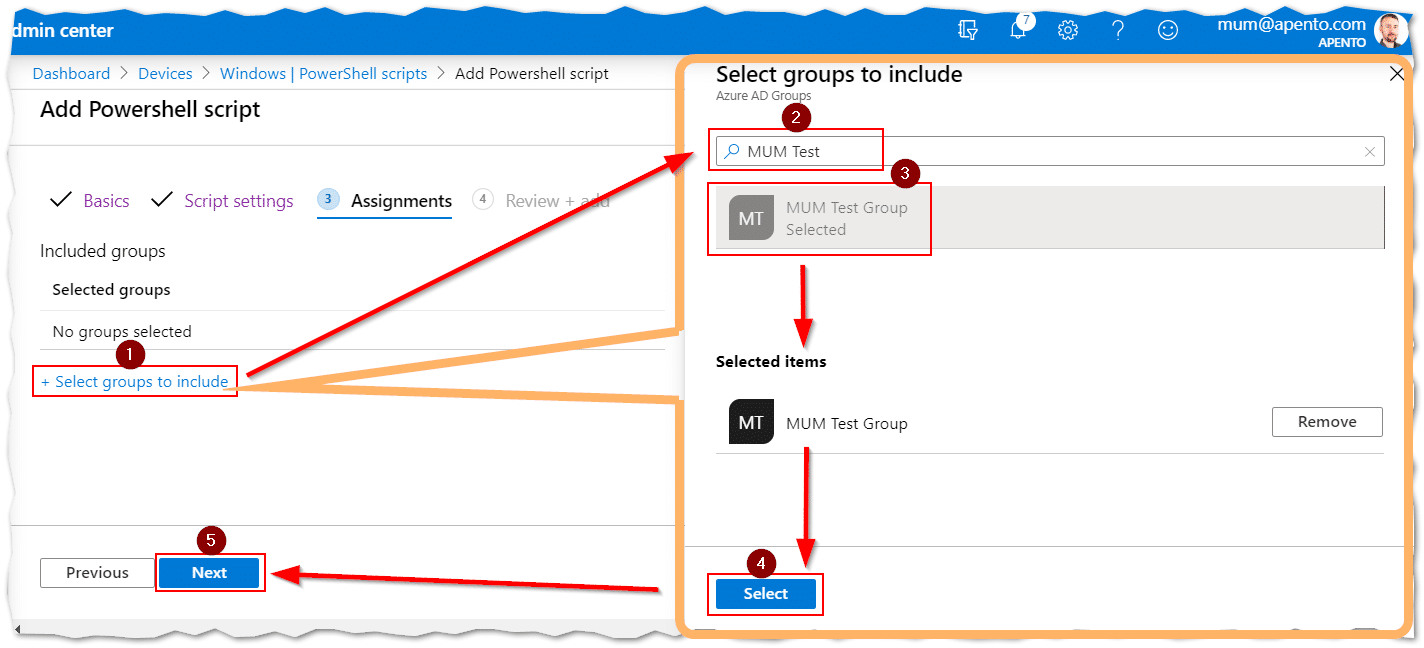
- Review and click Add
Troubleshooting
The script generates log files:
- System log:
%windir%\Temp\log_Update-TeamsFWRules.txt - User log:
%localappdata%\Temp\log_Update-TeamsFWRules.txt
Key reminders:
- Assign to a group of USERS not devices
- DON'T run in the user's own context
- Intune Management Extension is required for PowerShell script execution
Conclusion
We now have a simple way of deploying Firewall rules that target programs installed in user profiles. This approach can be adapted for other per-user applications in the future.