Contents Jump to section
Simplify Windows Hello for Business SSO with Cloud Kerberos Trust - Part 3

UPDATED March 2026 -- This post has been reviewed and updated to reflect current Microsoft product names, portal locations, and technology status. See inline notes for specific changes.
Cloud Kerberos Trust for Windows Hello for Business is the apex of single sign-on solutions for your Windows devices. In this Trilogy you can expect to learn the what, the how and the wow!
Co-authored by Ben Whitmore and Michael Mardahl
Looking for other parts? Part 1 -- Part 2
The story so far
We continue our mini series on Windows Hello for Business Cloud Kerberos Trust. In Part 2 we walked through the configuration of Cloud Kerberos Trust for both on-premise infrastructure and clients.
If you missed part 1 of our series, your journey into "Cloud Kerberos Trust" should start here: Part 1
We love the elegance and simplicity of Cloud Kerberos Trust but in this final post of the mini series we will dive a little deeper and look at some of the mechanics and moving parts to help you understand and troubleshoot your way out of a hole -- if you need to.
Hold tight and get your engineer brain engaged as we equip you with the tools you need to succeed!
Pick-up your engineering toolkit and come down the rabbit hole
Migrating from other Trust Models
This question often comes up, naturally. What if you are using hybrid key trust and you want to begin kicking the tires on cloud kerberos trust? The answer is simpler than you might think.
Migrating from a hybrid key trust model is very simple. For Microsoft Entra joined and Microsoft Entra hybrid join devices, simply deploy the Intune configuration to enable cloud kerberos trust and the user will switch to cloud kerberos trust. The extra requirement for Microsoft Entra hybrid join devices is the device requires line-of-sight to a DC at first logon or it will fall back to using key trust.
Migrating from certificate trust has more moving parts. You must disable the existing certificate trust policy, deploy the Intune configuration to enable cloud kerberos trust, delete the existing hello credential and sign back in to the device.
Use the following command to delete the existing hello credential:
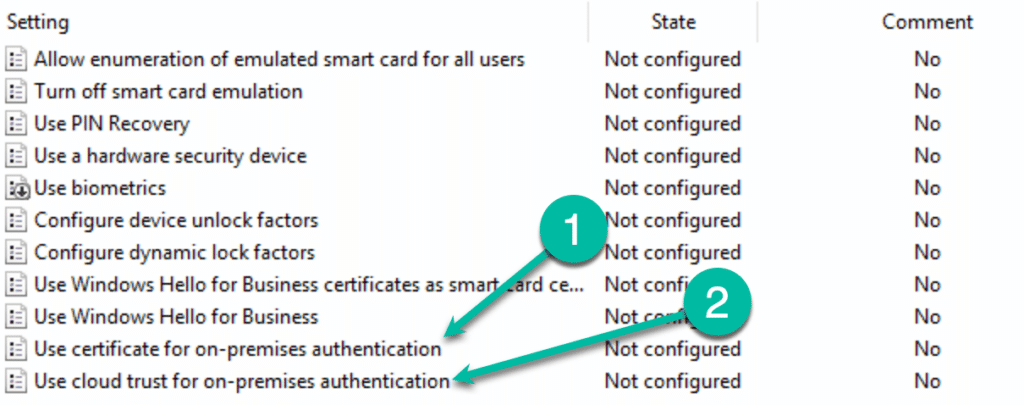
certutil.exe -DeleteHelloContainerThe "Key" thing to understand, (see what I did there?) is that a policy that defines neither: "Use certificate for on-premises authentication" or "Use cloud trust for on-premises authentication" is considered as using the "Key Trust" model for authentication.
Privileged Accounts
Highly privileged accounts are not granted, by default, to use FIDO2 security keys and/or cloud kerberos trust to login to a device. The local security policy forbids it.
The msDS-NeverRevealGroup property is used to define which AD objects are forbidden to have their passwords cached on the Kerberos RODC.
To unblock the accounts, use Active Directory Users and Computers to modify the msDS-NeverRevealGroup property of the Entra Kerberos Computer object (CN=AzureADKerberos,OU=Domain Controllers,<domain-DN>).
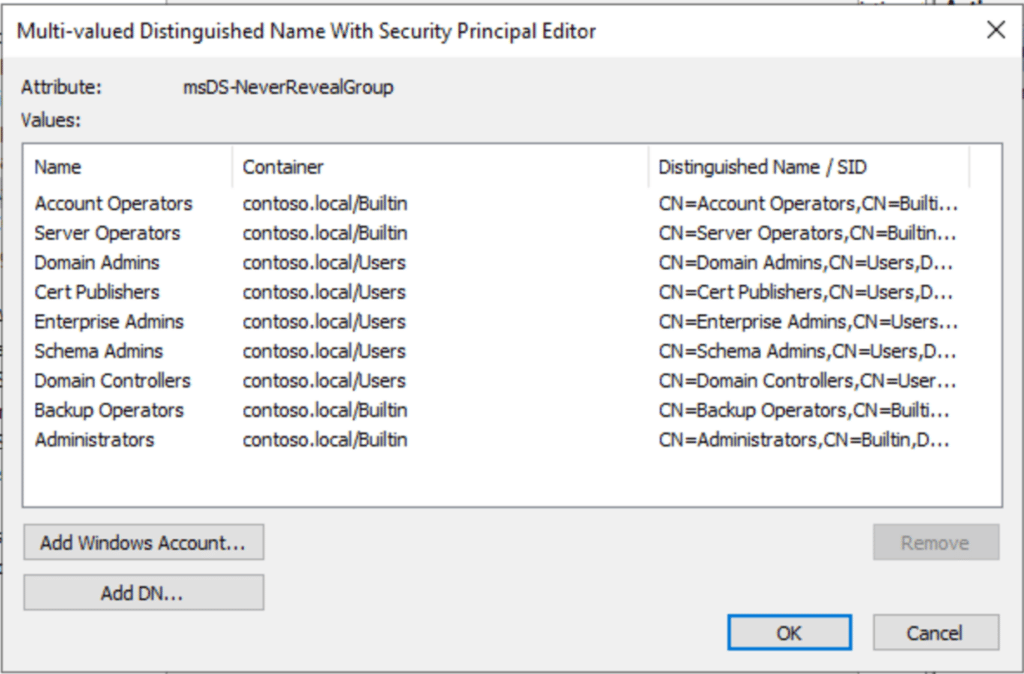
Caution should be used when relaxing any local security policy. Understand the impact, if any, of what you are about to do.
Next Generation Credential (NGC)
The Next Generation Credential (NGC) is important. Verify the NGC has been set on client devices correctly by using dsregcmd (in the user context) command. NgcSet: YES means that a hello key has been set for the current user.
dsregcmd /status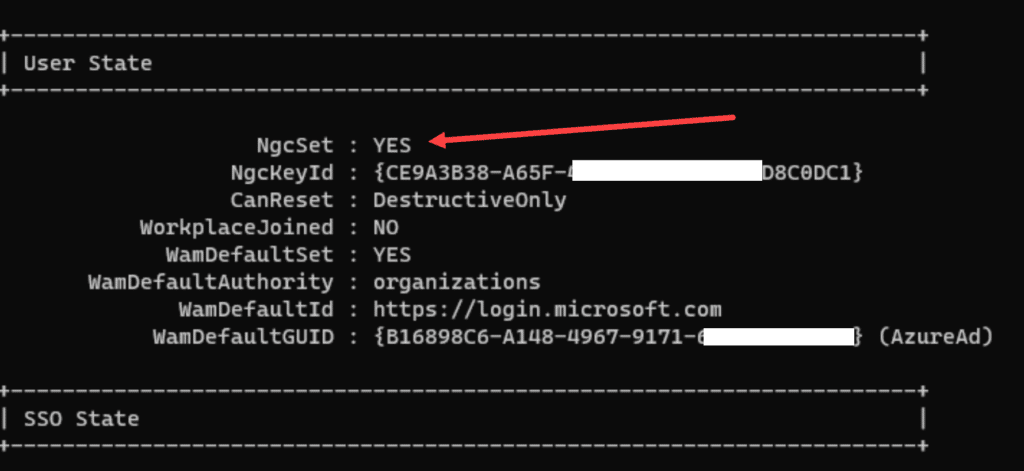
Verify the NGC has been saved to the user object in Entra ID using Graph Explorer. Examine the deviceKeys attribute for the NGC assigned to the device the user logged on to using WHfB.
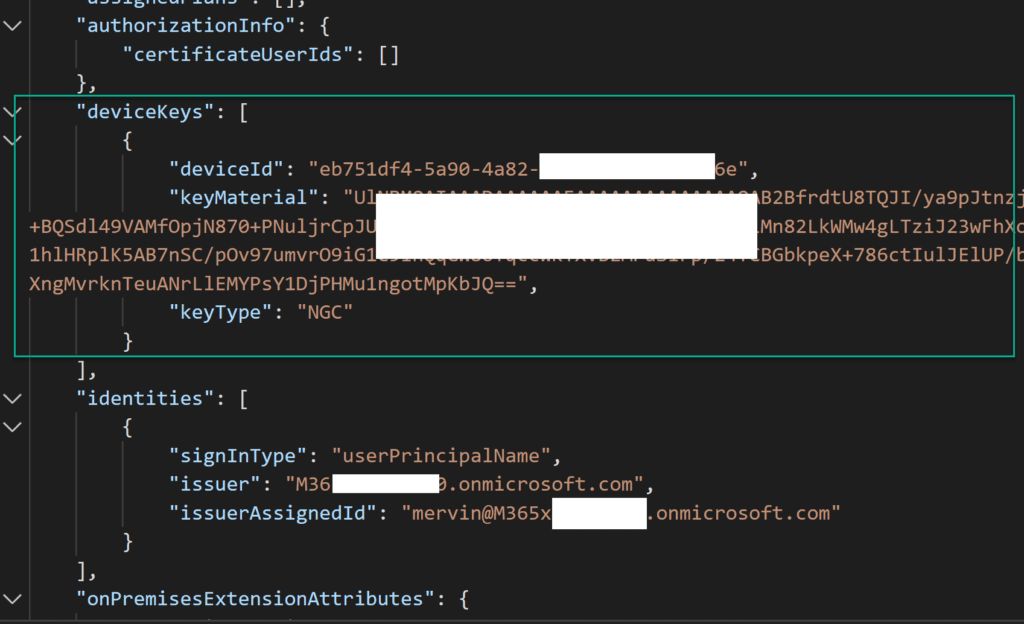
The NGC is present as a result of the normal WHfB authentication process -- it is not specific to us enabling Entra Kerberos but it will be important when we look at other moving parts later in this blog.
The NGC contains the base64-encoded public portion of the asymmetric key pair used for WHfB authentication.
You can also see in the Windows event log that the NGC was created and written to the user object in Entra ID.
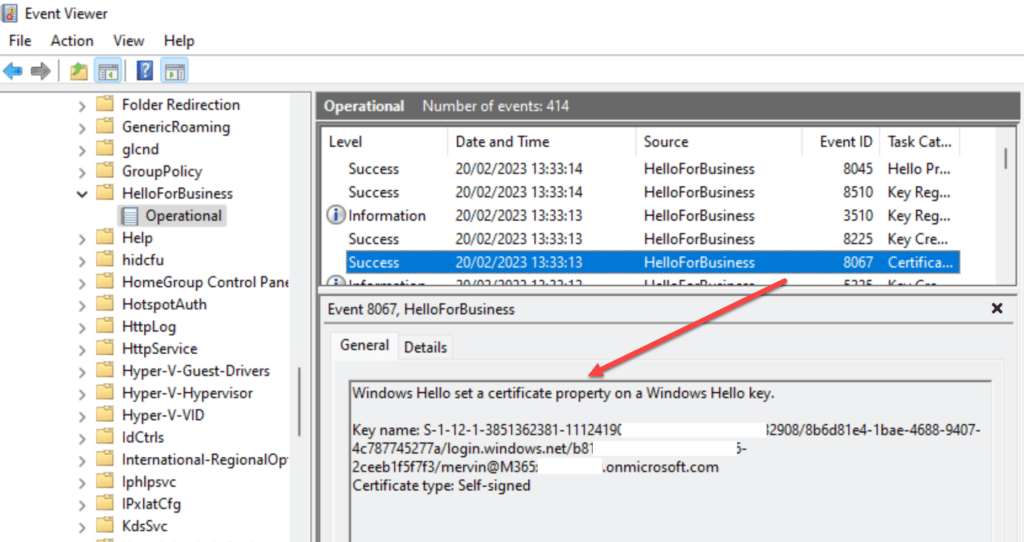
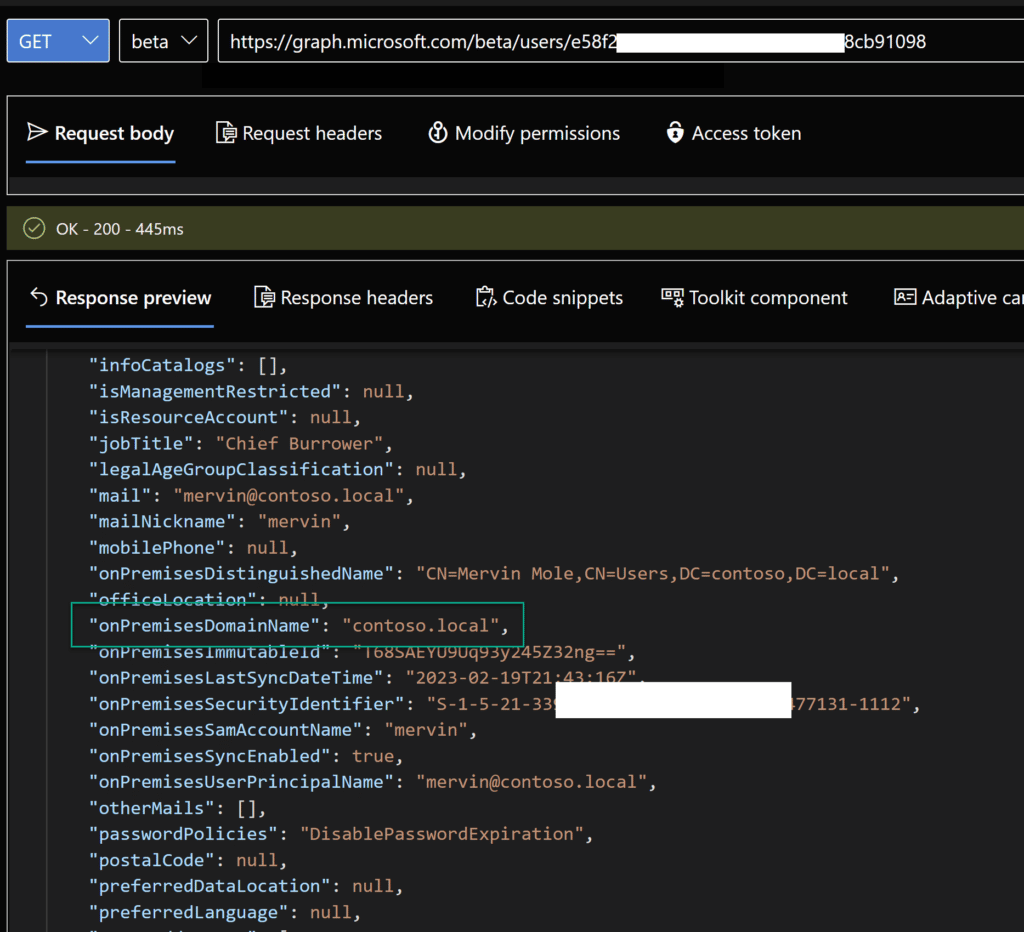
In Graph Explorer, we can also see some other cool metadata that will be useful when we deep dive later!
Cloud Kerberos Trust under the Microscope
Before we dial in our microscopes it is best we define what the high level components are in a Windows Hello for Business Cloud Kerberos Trust relationship as this will help us sort through the finer details.
- AzureADKerberos
- Windows 10/11
- Windows Server 2016 or newer DC
- User account synced from On-Premise
Yes, it is basically just those few things, no PKI is explicitly required! And now we have that sorted, on to the nitty gritty.
AzureADKerberos
In Part 2, we provisioned the Entra Kerberos Read-Only Domain Controller (RODC) object into the "Domain Controllers" OU of our local Active Directory domain.
So what happens when the object is created? It creates a server object that can issue Ticket Granting Tickets (TGTs) for Kerberos in your domain. The encryption key is then securely published to Entra ID, which allows it to issue a partial TGT as part of the magic behind Cloud Kerberos Trust. This partial TGT is received by the user via the Primary Refresh Token when they authenticate with Entra ID. The TGT includes only the user's SID, and no authorization data.
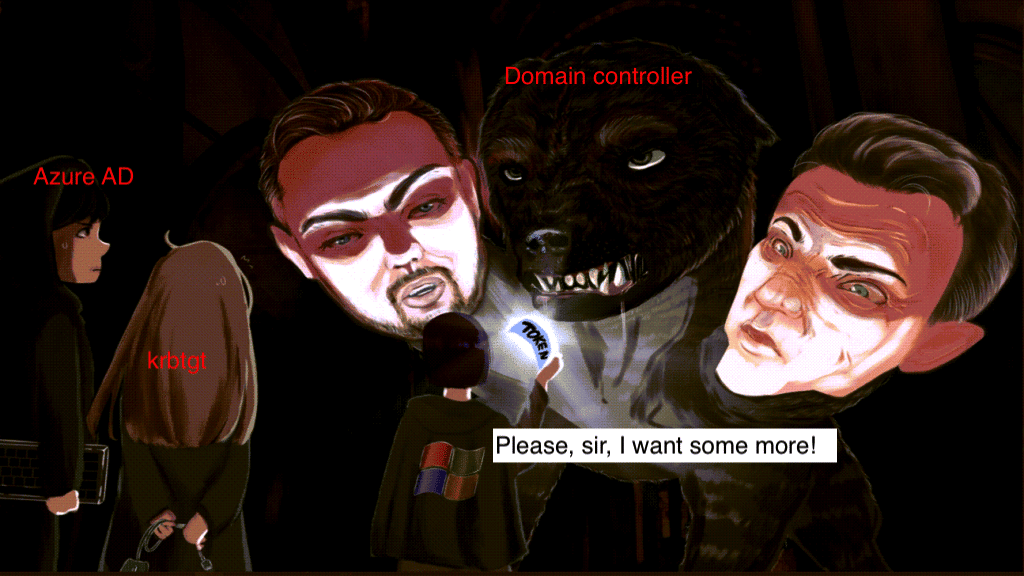
A poor user starving for SSO to on-prem resources!
This is a one-time operation, and for each on-premises domain, an object will represent it in Entra ID. No background processes are enabled to keep things in sync. It's all very secure!
If you have more than one on-premises domain, each one will have a key in Entra ID that corresponds to the on-premises domain. Thus, if you have multiple domains, this is not an issue. However, if you have a single domain and multiple tenants, the issue becomes more complicated, as there is no option to just publish the encryption key of the current Entra Kerberos RODC object into another tenant.
It's important to know that, since the encryption key (krbtgt) is not synced after the initial publishing into Entra ID, it's imperative to only use the AzureADHybridAuthenticationManagement PowerShell module to rotate the krbtgt of the Entra Kerberos RODC object.
Set-AzureADKerberosServer -Domain $domain -UserPrincipalName $userprincipalname -RotateServerKeyThere is more on the official Microsoft Learn site: Passwordless security key sign-in to on-premises resources
Windows 10/11
ICYMI: Windows is required for Windows Hello for Business to function. But not just any version of Windows. Windows 10 21H2 and later are recommended because the Cloud Kerberos Trust feature was introduced with this build.
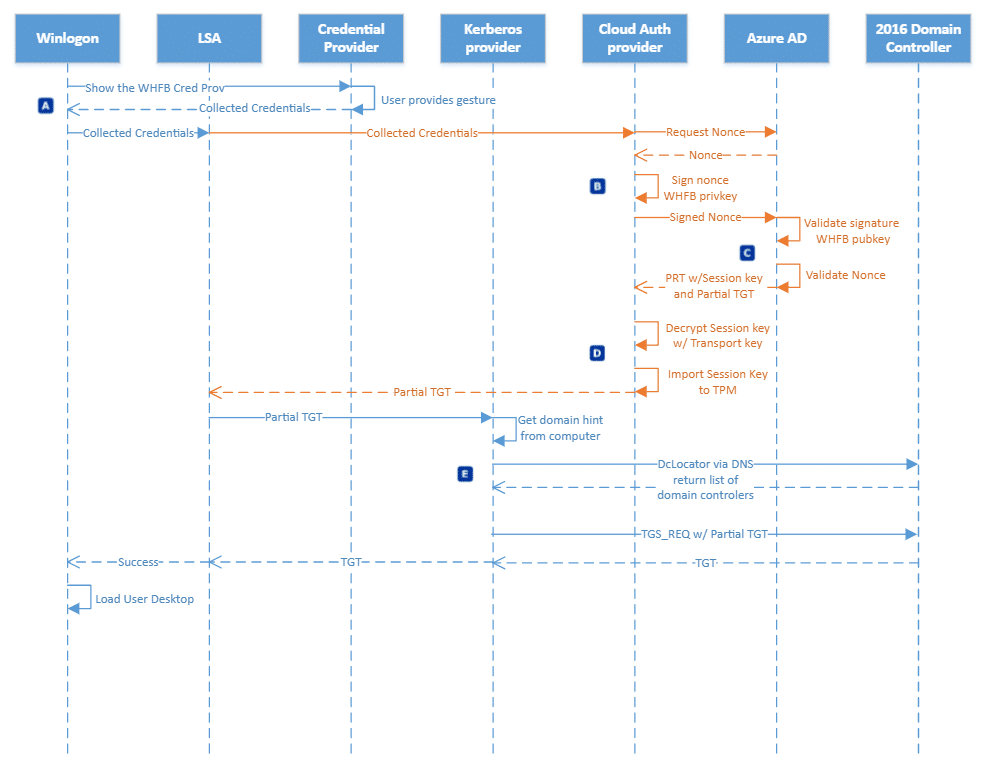
So what happens during sign-in, since it is important to have an updated version of Windows? Well it depends on what join-type your device is using -- Microsoft Entra hybrid join or Microsoft Entra joined. Let's start with the most common "Microsoft Entra hybrid join".
Microsoft Entra hybrid join
There are many roads to Rome, and this one takes the longest of them all!
Microsoft Entra joined
Be prepared to be amazed at the simplicity of being in a Microsoft Entra joined state and doing SSO to your on-prem resources:
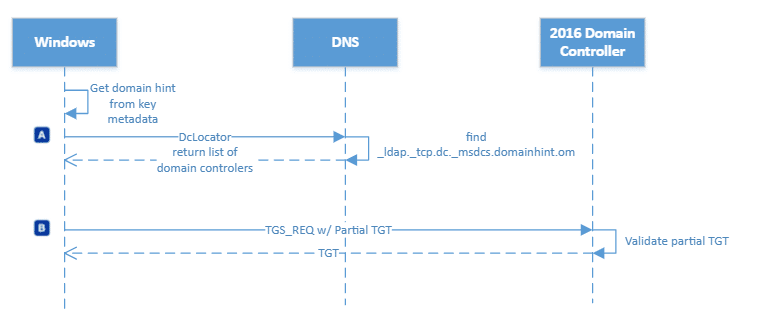
If you wanna get deeper into it and follow these awesome diagram flows from Microsoft, there is the official documentation at Microsoft Learn: How Windows Hello for Business works -- Authentication
Windows Server 2016 or newer DC
Now what's wrong with the classic Server OS of yesteryear? It's kerberos trust! Surely it matters not what version ones domain controller is at?
Well that part right and some parts wrong. See, there must be one or more Windows Server 2016 DCs to support both the Key Trust and the Cloud Kerberos Trust models, as they need to be able to interpret the Cloud TGT. The amount of DCs is determined by the amount of overhead the additional Kerberos requests cause in your domain. So even if you choose to upgrade all your current DCs that might not be enough if you decide everyone has to use WHfB. As Windows Hello for Business generates a sign-in process overhead, and you might need to plop in a few more "Mega Godzilla Beast servers" (as Mark Russinovich likes to call his pet servers) to take the load.
So, we are talking about Windows Server 2016+ Domain Controllers, which just upgrades the Schema when introduced. But what about the forest and domain functional level you ask? Well... Windows Server 2008 R2 Domain/Forest functional level is the accepted minimum. If you like leftovers and dumpster diving, you can go right ahead and keep it like that.
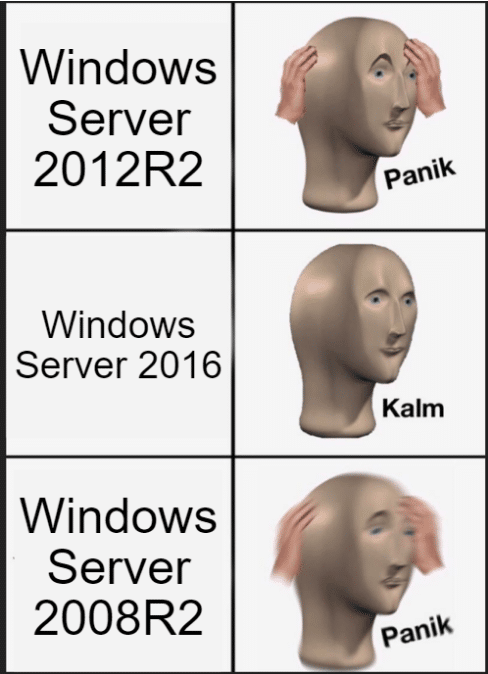
The difference between people who have an upgraded Domain Controller environment and those who don't.
User account synced from On-Premise
We have already eluded to the fact that an on-premise user account is indeed needed -- so there is no crying to mommy when your pure cloud user won't magically SSO into the ocean of legacy file shares you might have on-premise.
The simple fact is that the TGT that you get from Cloud Kerberos, is in fact just an identifier, proving that you are in fact a synced user from the on-prem domain. And the full TGT which you get from the DC, contains information that comes from the on-prem. Entra ID has no clue about what resources are in your on-prem, and even if it did, the on-prem is likely not trusting Entra's own Kerberos tokens (yes, there is another thing called Entra Kerberos, which can issue full TGTs for resources like file shares in an Azure Storage account, but I digress).
To get deeper into how all this works, we need to spin up a new headline called (drum-roll please)...
Kerberos is King!

Meet Michael, Ben and Fluffy the dog. Cerberos is the mythical creature that guards hades, the gates of hell. Fluffy is the watchdog of the underworld etc. In previous roles he was guarding Windows Vista and was born in the 80's when no one cared what shampoo you used.
Kerberos has 3 parts/heads (Michael = User, Fluffy = KDC, Ben = Service)
So what is Kerberos and how does it help us when we are looking to SSO to our domain resources? Here are some Kerberos basics:
- "Kerberos" is just a cryptographic ticketing system
- In order to request tickets to domain resources, the Kerberos protocol needs to know where the "Ticket Master" is
- The "Ticket Master" is called the Key Distribution Centre (KDC)
- The KDC in a Windows Domain is a Domain Controller
Basically I need to get a ticket from the domain controller, or KDC, to prove who I am to the service e.g. file server.
Finding a KDC
Microsoft Entra joined devices are not aware of your domain, so how do they find the KDC to get tickets? That's easy and takes us back to the 80's again. DCLOCATOR is a process used by Windows systems to locate the closest available Domain Controller.
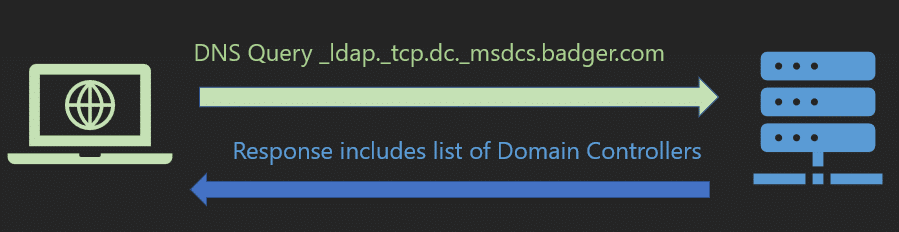
First my client needs to find the KDC, how does it do this when the client knows nothing about the domain? Ah-ha, remember we have some synced attributes that come down with our Primary Refresh Token at logon. DCLocator needs a domain hint, which it gets from the onpremisedomainname attribute that came down with this PRT. A Domain Controller (KDC) is returned to the client as a result of, effectively, a DNS query.
We can simulate what DCLocator does by running the nltest command on a device and passing the domain name:
nltest /dsgetdc:byteben.com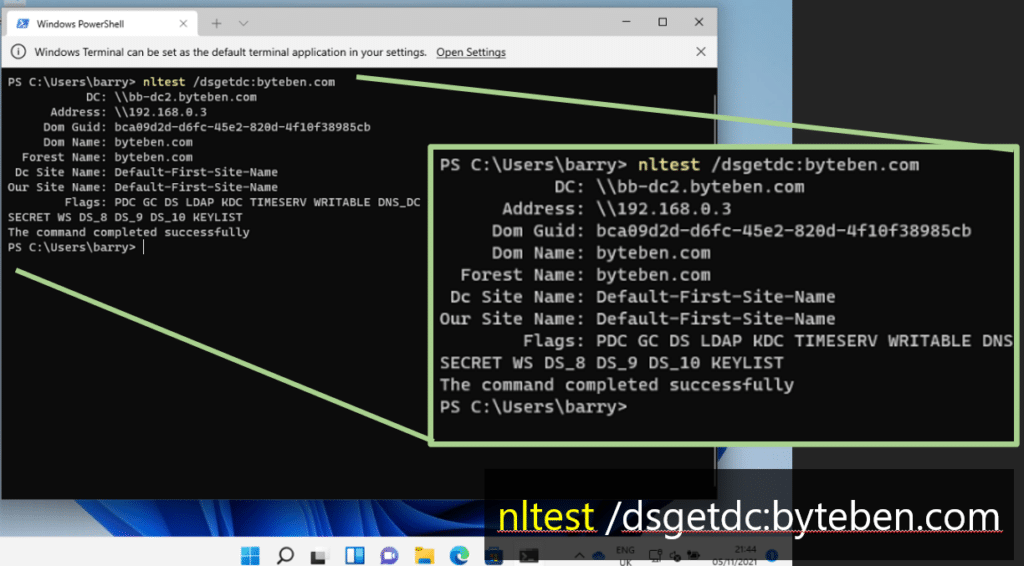
If on-premises DNS is broken or the client is not configured correctly for DNS. This query might/will fail. It's always DNS right?
Tickets Please
Now we know where the KDC is, let's go into a bit more detail on how Kerberos ticket issuance works and helps us to access domain resources.
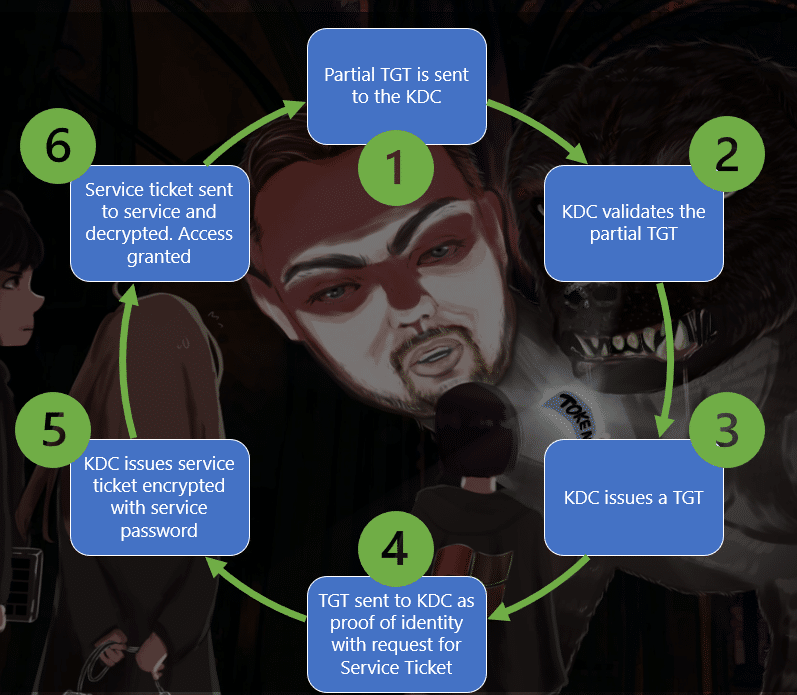
- The partial TGT we obtained from Entra ID is sent to the KDC.
- The KDC validates the partial TGT.
- The KDC then issues a "Golden" ticket to the user. The golden ticket, or Full TGT, is proof the user authenticated. Authentication has a lot of overhead so we don't want to keep doing it.
- The user then sends that TGT (proof that they can come into the nightclub) along with another request to access a service, like CIFS (fileshare).
- The KDC sees the user has a valid TGT (BTW, only the KDC can decrypt the TGT) and issues a "Service Ticket". The service ticket contains things like group membership and service requested.
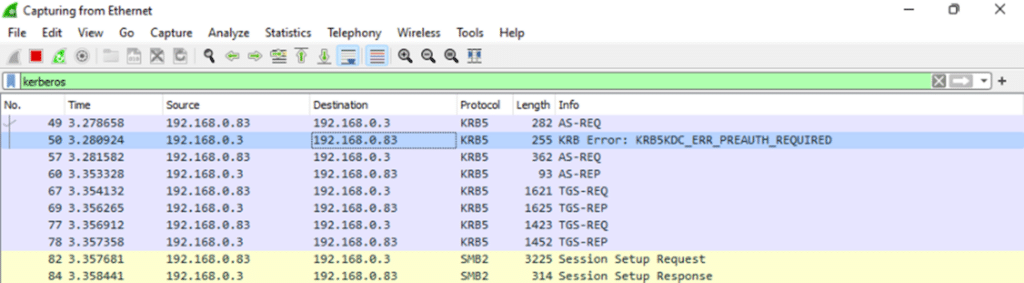
We can see the AS-REQ for a ticket come into the KDC (You can filter Wireshark using the KRB5 protocol to see this cool stuff):
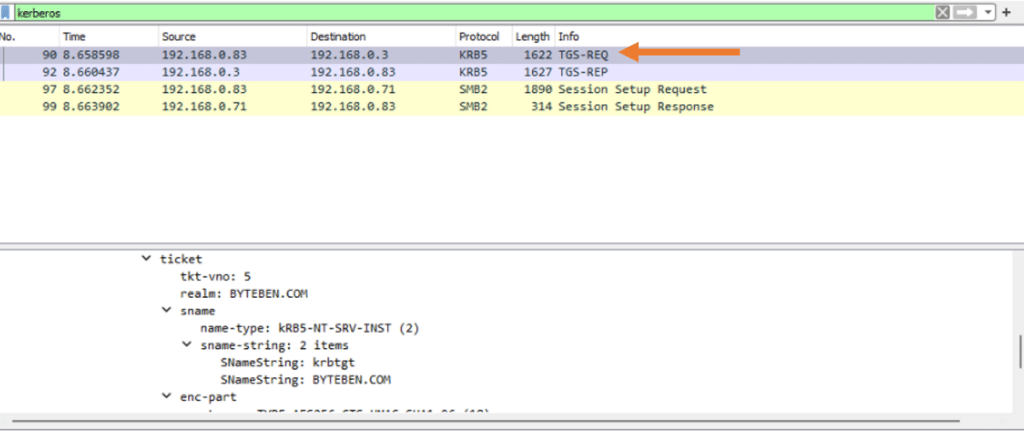
When we try to access a file share, we see the client send a request to the KDC. The request contains our TGT which validates who we are:
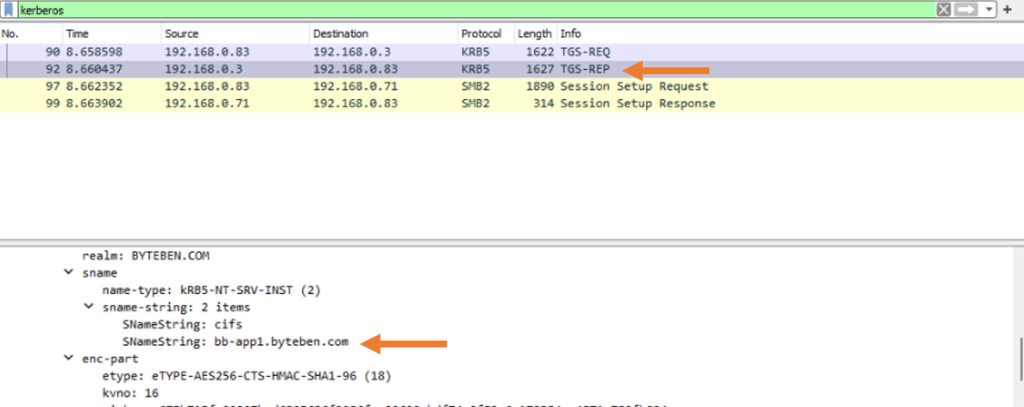
The KDC then issues us a service ticket for the resource we just tried to access. In this example we accessed a file share on bb-app1.byteben.com:
Klist
klist displays all the service tickets we have been granted. Here is the service ticket we requested to access the file share on bb-app1.byteben.com:
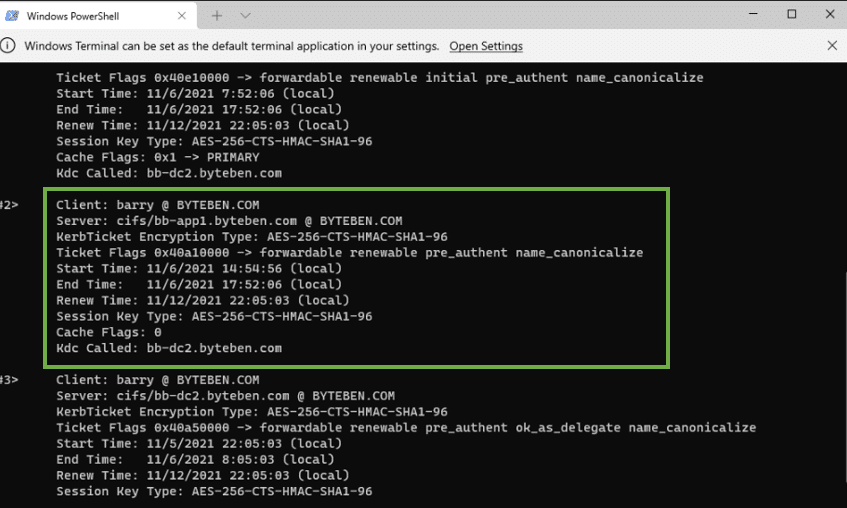
Klist also has another cool command when working with Cloud Kerberos Trust:
klist /cloud_debug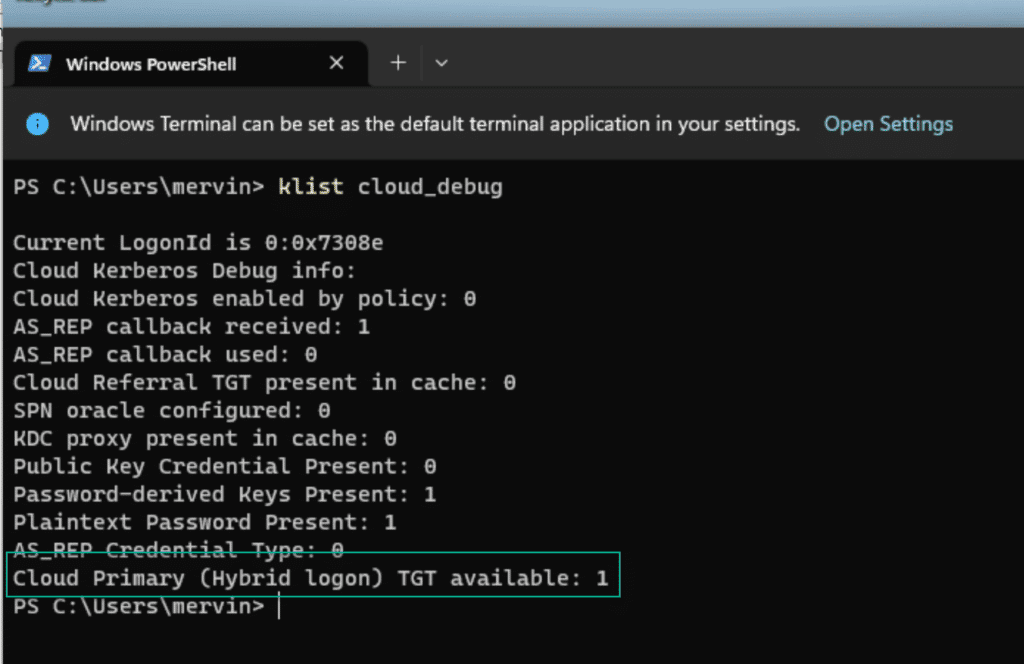
MFA
YES!
In case it was not obvious, the requirement to enroll into Windows Hello for Business is that the user can complete an MFA request from Entra ID. And there is absolutely no way around that. But there are tricks like using Temporary Access Pass in Entra ID, in case you want to pre-provision WHfB for end users, or you don't want or need them to have MFA capabilities outside of their device.
Summary

Hopefully this 3 part mini series has been useful. It's always difficult to know how deep to go and keep the content engaging. If you would like any more info, please reach out!
Bookmark this page, because there is no way you will remember all of this stuff, and don't forget that Ben and Michael work for likes and follows on Twitter and LinkedIn. Fluffy takes bones, peanut butter and cinema ticket stubs as donations.