Contents Jump to section
2 for 1 - Mail Enable Unlicensed Admin Accounts - 2024 Edition

UPDATED March 2026 -- This post has been reviewed and updated to reflect current Microsoft product names, portal locations, and technology status. See inline notes for specific changes.
Are you looking to cut mailbox licensing costs for your Microsoft 365 tenants admin mail accounts? Well, look no further, and I will share a few ways for you to save money on Exchange Online licensing fees for your admin accounts that need to exchange e-mails.
So what do I mean by "admin accounts"?
In this case, the admin account (sometimes referred to as an ADM account) is a separate privileged account used by IT staff to perform their privileged duties. These account types are a standard security measure implemented in many companies, and in some cases, they need to be mail-enabled.
Some valid reasons for needing to mail enable an admins account is:
- To receive Microsoft Notifications.
- Third-party admin tools that don't support alternative e-mail addresses.
- OTP messages sent to the account.
- Using the account UPN in places that require you to fill in an e-mail.
But mail enabling does not necessarily mean having to purchase a license for Exchange Online!
One way for you to avoid excessive licensing for Exchange Online is to redirect emails using Distribution Lists.
By redirection, I mean mail destined for your admin account goes to your regular non-privileged account instead.
IMPORTANT UPDATE
These solutions below worked for many years but are maybe no longer needed. A much simpler solution is now available to tenants that have "plus addressing" enabled. I have left the original part of this article below the line, just for historical reasons. The following is the "new" simple way of doing this. But notice that e-mail sent directly to the UPN will not be delivered, in this case you need to use one of the other options.
A "plus" address is simply a "tag" that is added to the incoming e-mail, but when added to the admin account, Entra ID will pass the check for duplicate mail address values, and allow you to add the "same" mail account to two different objects in Entra ID.
Enable Plus Addressing
Requirements: Exchange Administrator Role
To begin with, we need to verify if the tenant allows "Plus Addressing". It is enabled by default in most tenants, and you can read more about it here: Plus Addressing in Exchange Online | Microsoft Learn
- Access the Exchange Online Admin Center via https://admin.exchange.microsoft.com
- In the menu on the left, find the "Settings" button, indicated by a "gear" icon, and click it.

- Inside "settings", find the "Mail flow" option indicated by an envelope icon, and click it.

- You should see a fan-out menu with the "plus addressing" option shown at the top. Make sure that the box next to it is clear. Clear it if needed.
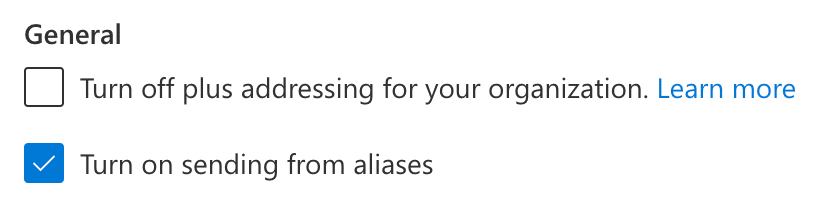
Add a "plus" Address to the Admin Account
Adding a "plus" address to the admin account, so you receive e-mails in your "regular" mailbox, is as simple as these steps:
- Go to the Microsoft Entra Portal: https://entra.microsoft.com
- Find the user account in your list of users and open up the account page
- Click on the "properties" tab found on the overview page.
- Find the "Contact information" edit "pen" and click it.

- Now simply type in your regular account e-mail but add the "plus" tag as well. For example, if your regular e-mail account is "[email protected]", add a "+admin" tag, right before the @-sign:
[email protected]

- Afterwards, click "save" and you are done!
Now you will receive e-mails on this address inside the normal user account mailbox. The added benefit of "plus" addressing is that you now have a tag that you can use to sort your e-mail on.
Using Distribution Lists to redirect e-mail (Original Solution)
Using Distribution Lists to redirect e-mail has several advantages:
- Easy to set up with PowerShell or EAC.
- Redirect without storing a copy.
- Supports "send as" or "on behalf."
- Supports "Hide from Global Address List."
- Generates the least amount of system clutter.
- No license consumption required!
You might be wondering why this single problem had me choose Distribution Lists over other tried-and-true solutions? I explain that and other solutions, at the end of this article. It's up to you to decide if you think another solution is a better fit for your organization.
Now that most of the admin portals in Microsoft 365 and Azure no longer require admins to have an active license assigned, you could be looking into removing Exchange Online Licensing from your admin accounts and switching to Distribution List redirection or similar solutions to save money.
The solution
I have opted into using PowerShell for this solution, but you could use the Exchange Admin Center instead. This is, however, not explained in this blog post.
The following PowerShell code should get you off to a good start. Use it to build a neat solution in Azure Automation, and have it execute every time you add a new admin account. That is sure to impress the boss!
Automation is king -- only your imagination will limit you...
The requirements
- Azure Subscription (free is sufficient). Alternatively, connect using the Exchange Online PowerShell Module V2.
- Exchange Online Administrator Privileges.
- A basic understanding of PowerShell script variables.
The steps
- Log on to Azure Cloud Shell via https://shell.azure.com
- Run the command: Connect-ExoPSSession (UPDATE: removed in latest version of cloud shell, where you will have to install exchangeonlinemanagement PS module manually!)
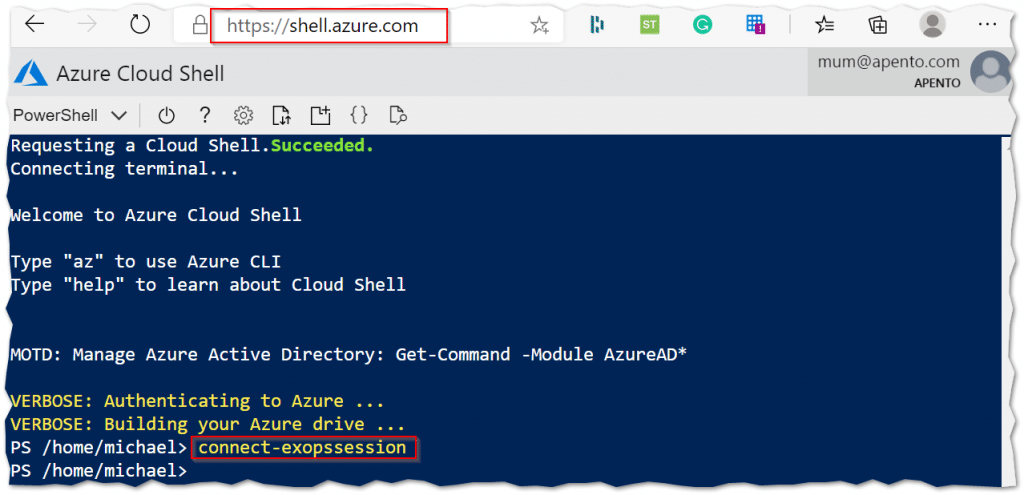
After completing the above steps, you can interact with Exchange Online PowerShell.
Before you go off and execute the script below, you first need to understand the variables that it uses.
$adminMail = "[email protected]"
$userMail = "[email protected]"

$name = ($adminMail -replace "@","_").Replace(".","-")

New-DistributionGroup -Name "Redirect for $name" -Alias "$name`_admin" -PrimarySMTPAddress "$($adminMail)" -ManagedBy "$userMail" -CopyOwnerToMember -MemberDepartRestriction "Closed" -MemberJoinRestriction "Closed"

Set-DistributionGroup "Redirect for $name" -HiddenFromAddressListsEnabled $true -GrantSendOnBehalfTo "$userMail" -RequireSenderAuthenticationEnabled $false
You will need to modify the variables in the script above, according to your requirements.
- $adminMail -- This variable is the e-mail address you wish to assign to the Distribution Group. This should be the same as the UPN address of the admin account.
- $userMail -- This variable is the non-privileged account e-mail. This account must have an Exchange mailbox and should only belong to the same person owning the admin account if you like staying compliant.
- $name -- This variable is my way of auto-generating a name for the Distribution List; you can modify it if you like, but you must understand the impact yourself.
Troubleshooting
- No e-mail coming through from the Internet -- Unfortunately, it can take a while for your newly created Distribution Lists cleared for unauthenticated external e-mail. So, give it some time.
- Admin e-mail address already in use in the organization? -- If you previously had this e-mail address receiving e-mail, you will need to track down the location of the e-mail attribute and remove it from whatever crevice it resides in -- e-mail addresses are unique throughout Exchange Online. Remember to back up any existing mail data if you already had a license assigned to the admin account. You might have leftover attributes from past licensing on your admin account. Clean them out by temporarily adding a license and running the
Set-User [email protected] -PermanentlyClearPreviousMailboxInfocommand from Exchange Online PowerShell. You are out of luck? -- delete the user and create from scratch. - Unable to remove the Exchange Online license from the admin account -- You might have group-based licensing enabled in your tenant.
Other solutions -- pros/cons
As with all things Microsoft, there are several ways to achieve a solution to a problem, so in the spirit of sharing my thoughts, here are some other possible solutions.
Please keep in mind that you might be required to adhere to specific compliance requirements, such as accountability, traceability, retention, backup licensing, exit strategies, and separation of privileges.
Security compliance is why I ended up choosing Distribution Lists. Also because they have the smallest footprint vs. usability.
Transport Rule
Pros:
- Requires no license.
- Easy to implement.
Cons:
- Can't use "Send As" and "On behalf of".
- Clutter in the rules list. Can you imagine having 99 admin accounts and this problem?
- You are limited to 300 rules in Exchange Online.
Shared mailbox
A classic solution to saving on Exchange Online licensing, but it did not support my requirements of not being able to store email -- it came close though!
Pros:
- Requires no license.
- Can store a hierarchy of mail items in folders.
- Easy to configure and maintain with PowerShell.
- Can have a very small visual footprint in the admin interface.
Cons:
- Requires a user account to be present and disabled for mailbox login.
- The admin UPN can only be added as a secondary Alias.
- Runs as a separate mailbox in Outlook, unless automapping is disabled and email is forwarded.
- Your mobile access to these emails will be limited to Outlook for iOS/Android.
Alias Address
Not much to say here. Except that it's not possible to assign an Alias to a regular user if the alias exists as a "UserPrincipalName" (UPN) on an existing account. Also if you have a Hybrid Exchange environment, you might be tempted to manipulate the user's proxyAddress attribute directly. This will not work!
Microsoft 365 Groups
Not much to say here either. Same limitations as Alias Address apply.
Final words
In a perfect world of P2 licensing, you could use Azure PIM to consolidate users. Unless security has required that you have separate accounts (tiering).